 IPatyj Traffic
How to use
From first launch to results: six simple steps.
Choose what you want to do. Select a card to see the steps right here.
01Allow usage accessSee how much internet data your apps use.Show stepsHide steps
- Open IPatyj Traffic. On the Allow usage access screen, tap Open access settings.
- In the phone settings that open, find and tap IPatyj Traffic.
- Turn on usage access. The switch is usually called Allow usage access; wording varies by phone.
- Use your phone’s Back button to return to IPatyj Traffic.
What to expectThe data overview becomes available. Android usage counters can take time to update.
If you cannot find the screen, search your phone settings for Usage access, then choose IPatyj Traffic.
02Check your data usageSee how much data you used today or this month.Show stepsHide steps
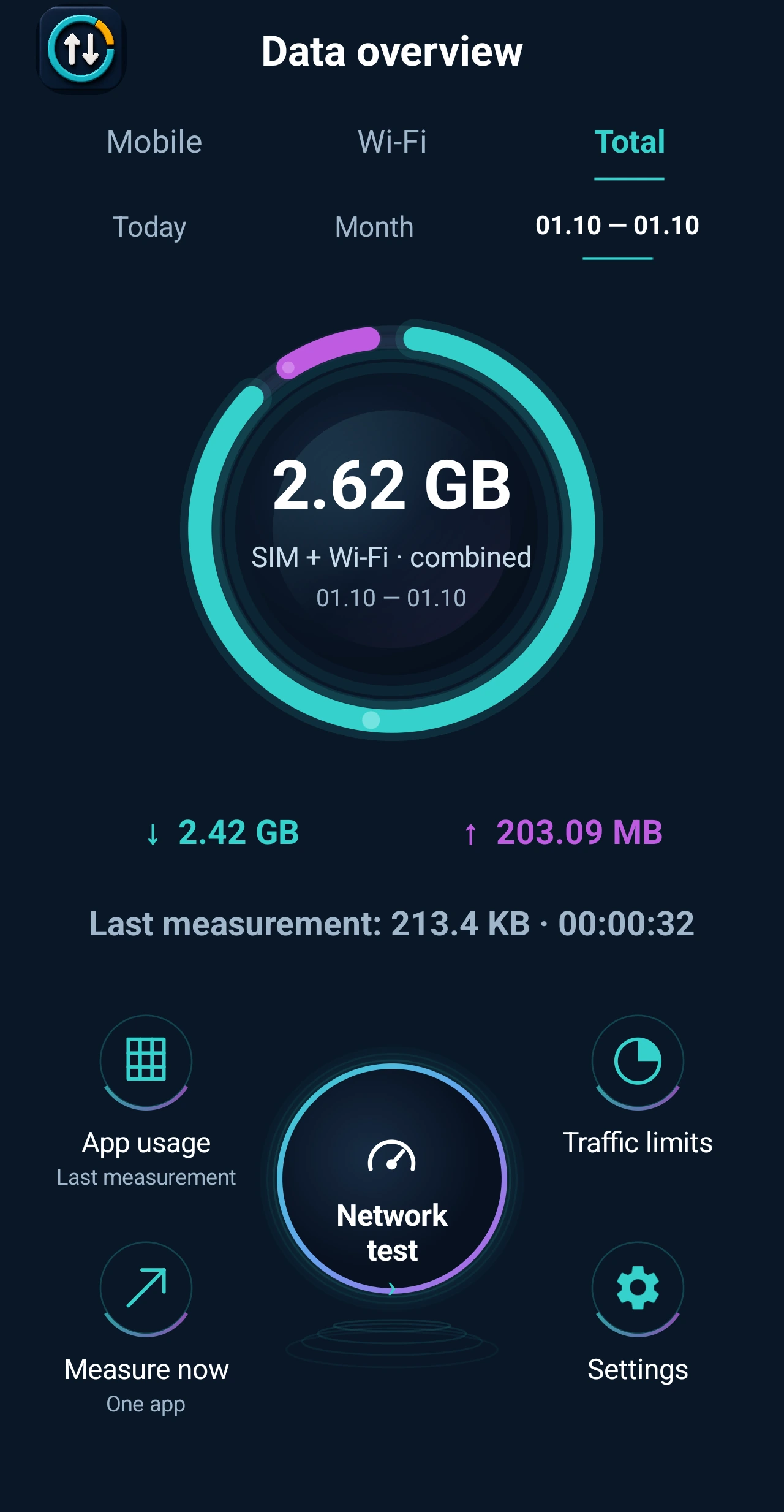
- Open Data overview.
- Choose Mobile, Wi-Fi or Total for both networks combined.
- Choose a day, month or custom period. The GB or MB value is the amount of data used.
- Download means data received by your phone. Upload means data sent from your phone.
What to expectYou will see usage for your selected period. This is an amount of data, not a connection speed.
03Find what uses your dataCompare data usage across your apps.Show stepsHide steps
- Open App usage.
- Check which network and time period you are viewing.
- Sort by usage to find the apps using the most data. Use search to find a particular app.
What to expectEach app has its own usage amount. A larger amount does not automatically mean a problem: video and downloads usually use more data.
04Measure one sessionFor example, check the data used while watching a video.Show stepsHide steps
- Open Measure now and tap Choose app and start.
- Select the app and confirm Start and open.
- Use the app as usual, then return to IPatyj Traffic.
- Tap Stop measurement. Completed sessions are available in Measurement history.
What to expectYou will see how much data that session used.
05Test your internet speedSee how your connection receives and sends data.Show stepsHide steps
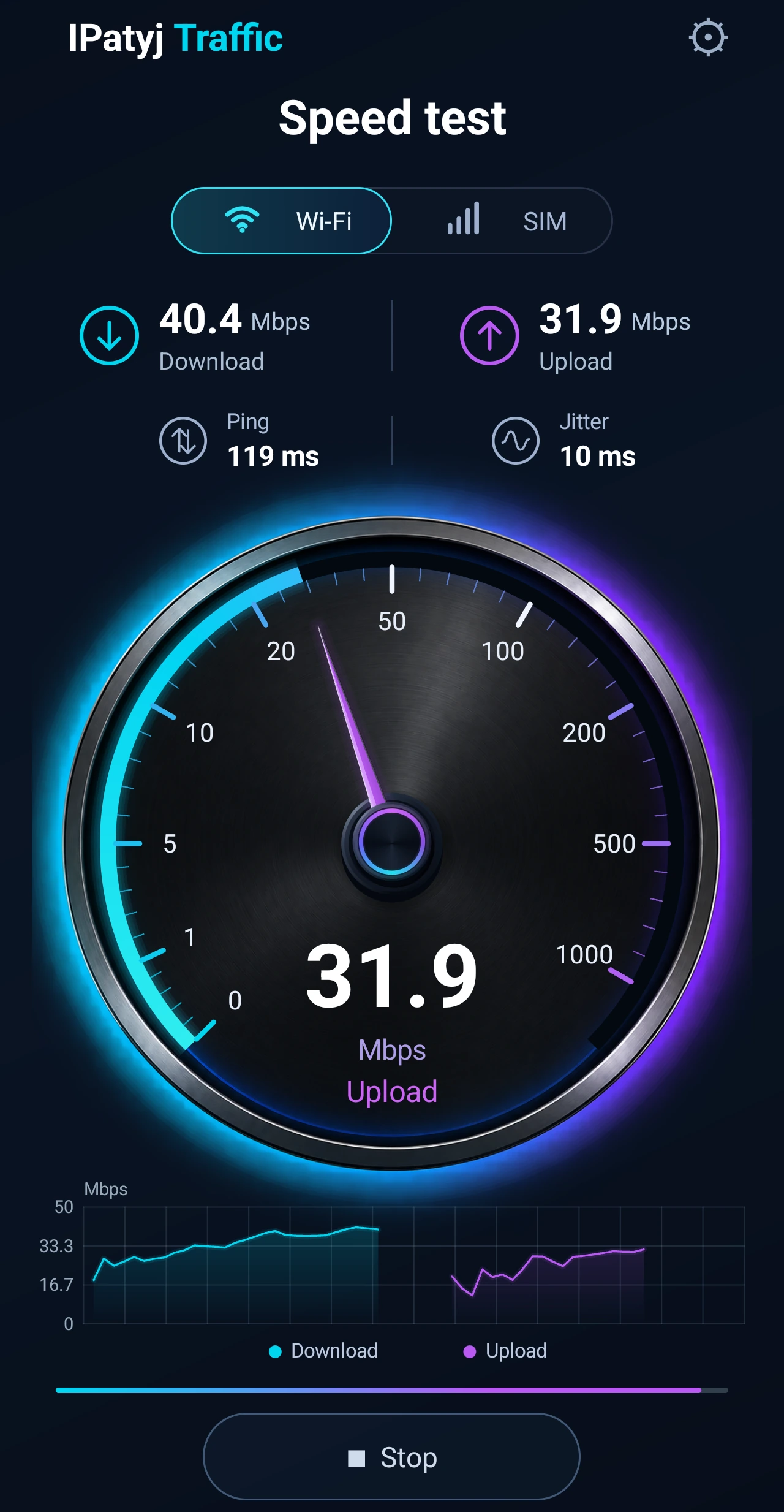
- Open Network test. On the speedometer screen, choose Wi-Fi or SIM.
- For your first test, choose Standard and tap Start.
- Wait for preparation, download and upload to finish. Avoid starting other downloads during the test where possible.
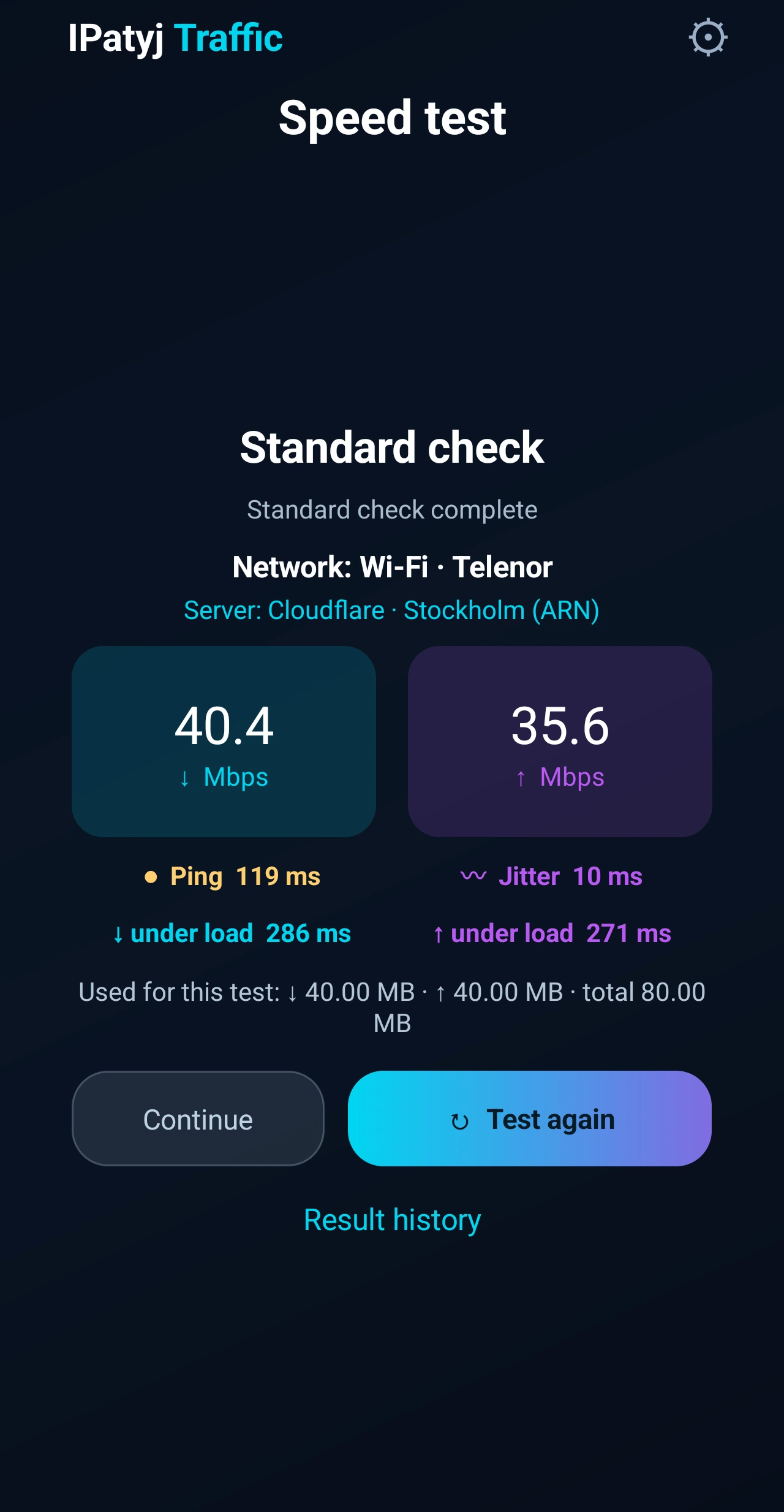
- Read the result: Download is receiving data, Upload is sending data. Mbps means megabits per second.
What to expectThe test shows your connection speed and delay at that moment. Results can change with network conditions and load.
The test uses internet data. Precise takes longer and transfers more data; read the in-app warning first.
06Set an allowance and find historyGet alerts and revisit completed results.Show stepsHide steps
- For alerts, open Traffic limits and set your data allowance. Allow notifications when prompted.
- Open Result history for completed speed tests. Use Measurement history for individual sessions.
- To change language, open Settings → Appearance → Language. By default, the app follows your phone language.
What to expectThe allowance helps you track usage. An alert does not automatically disconnect your internet.
App screenshots are shown in English.